Become author in Intro (english) -> mailto:apply [snail] wiki [period] audio?subject=Author%20application%20for%20Intro%2FIntro%20%28english%29
Intro (english)
Current version of the page has been reviewed and is approved ().
Welcome to wiki.audio! We are very pleased to welcome you as an author and thank you for your willingness to help build wiki.audio. On this page, we have compiled some information to help you get started in the wiki.audio working environment. If you have any questions, please contact us -> mailto:contact [snail] wiki [period] audio.
The videos by web developer Petko Yotov offer a detailed introduction to how the wiki works:
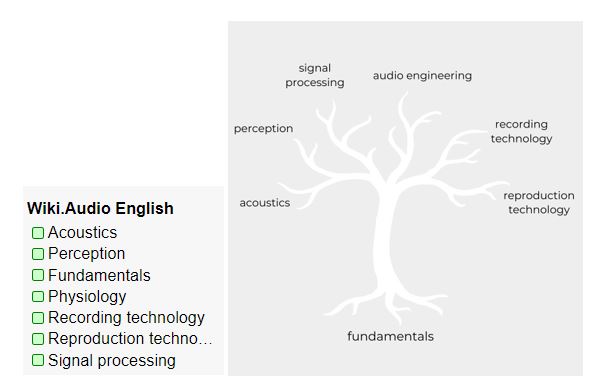
The contents of Wiki.AUDIO are structured tree-like according to the six major topics of audio technology. This structure is reflected in the page tree in the left menu bar. Each of these six main topics branches out into subchapters and finally into individual articles. As an author, you have the option of adding a branch or a leaf in the form of an article at any point in the tree by clicking on "New" in the header or footer. The displayed page can be edited by clicking on "Edit".
There is a separate pagetree for each language. The aim at the moment is to offer all content in German and English.
Create and edit articles
New articles can be contributed to wiki.audio by clicking “new” which appears at each site. Existing articles can be edited by clicking on the “Edit” page tab at the top of the article page that you want to edit. Then go ahead and make changes. An edit can either fix typo or spelling mistakes or contribute new sections, information or media. Please be bold and try to help the article to be/stay clear and concise.
Please make sure that the edit is aiming to improve the content of the article.
An edited article is automatically set to draft modus again and needs to be approved by a reviewer.
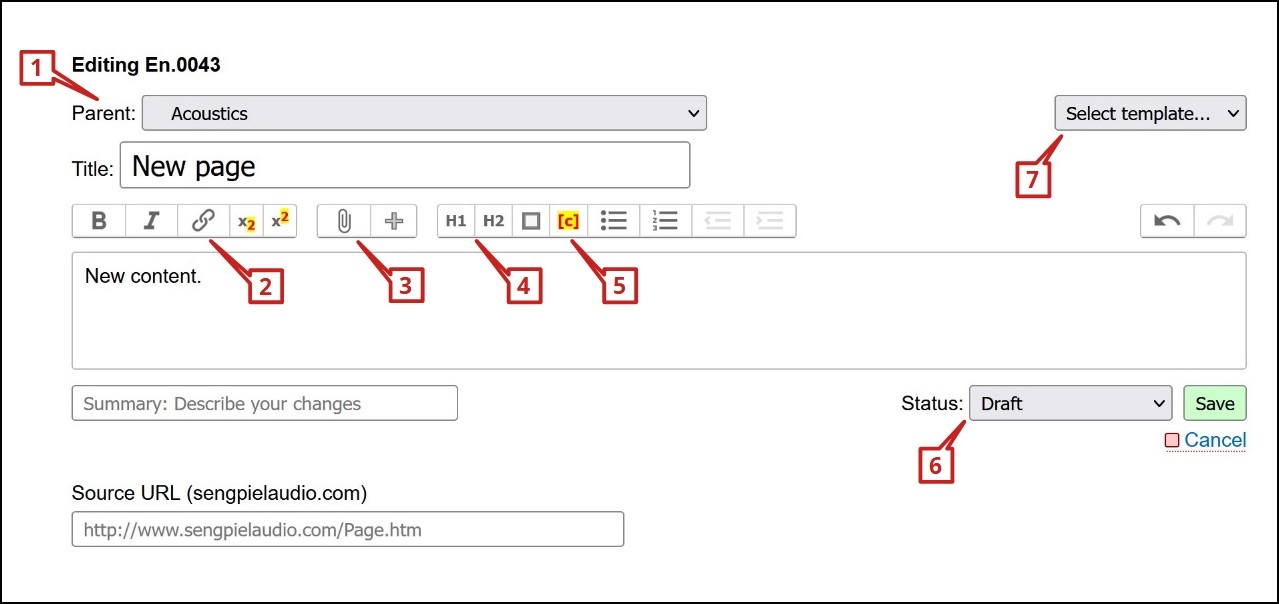
A graphic input mask was designed for article writing, which includes basic formatting tools such as bold (B) or italic (I) font, superscript (x2), subscript (x2), enumerations and numbering and works similar to common word processing programmes.
Additionally, some further options are available for writing an article:
The drop-down menu "Parent" [1] to integrate the article in the content structure (topic tree).
Button [2] to add links to URLs, internal pages (e.g. wiki.audio articles), mail addresses or keywords.
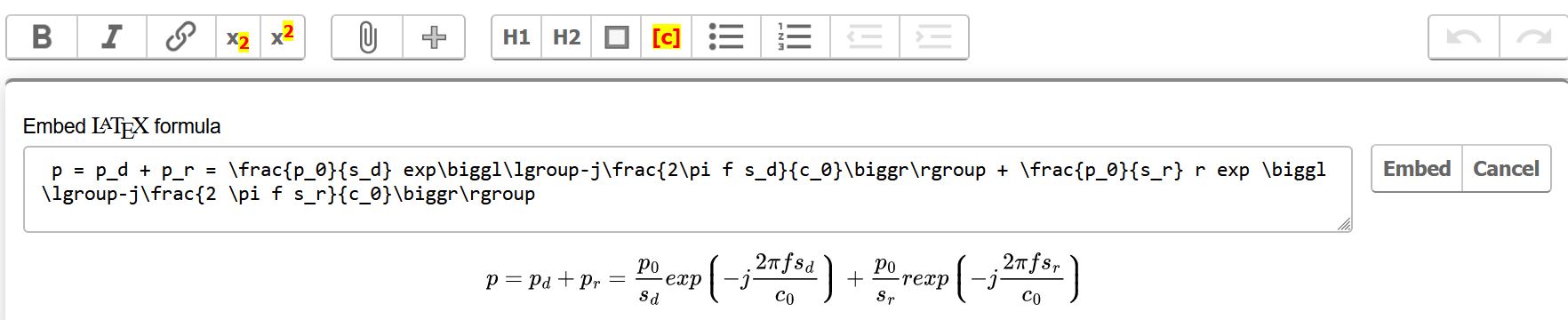
The paper clip [3], to upload files of various types, whereby images are displayed directly in the article, while PDF files are made available for download. Via the plus, videos, formulas according to LaTex language and interactive calculators can be embedded.
The buttons H1 and H2 [4], to format text as a heading or subheading. A table of contents is automatically created from these and inserted before the first heading.
Button [5] can be used to mark text as a comment so that it is only visible to logged-in authors.
The drop-down menu "Status" [6] is used to select the current progress of the page. If the option "Draft" is selected, the page is publicly visible but clearly marked as a draft. Once the status "Ready for Approval" is set, a wiki.audio editor reviews the article and then sets the status to "Approved". For further information see the section Review process.
Select a template from the drop-down menu [7] to get started straight away.
Including Multimedia Files
To clarify the content, various multimedia files such as illustrations, videos and sound samples can be added using the paperclip in the input screen.
Among others, the following file formats can be added:
[TAB]
Images | png, jpg, eps, dvi, gif, svg
Videos | mp4, mov, webm, avi
Sound files | wav, mp3, flac, m4a
Equations
Equations can be implemented in an article using LaTex Formula.
Interactive calculator forms, which are stored on the "Forms" page, can be easily inserted in any article. To insert a new calculator, please click on “+” and “Calculator form”. Type the name of an existing calculator or insert a name of the calculator you want to create and click Embed. Then go to Forms. Select the calculator and start creating your individual calculator. A detailed description on how to create a calculator can be found on Documentation.
Citing with footnotes
All provided information is required to be verifiable in reliable sources and thus needs to be cited in the section “References” of the uploaded article. To provide articles of good quality and accuracy, we request authors to use reliable, independent, published books and articles as references for their work.
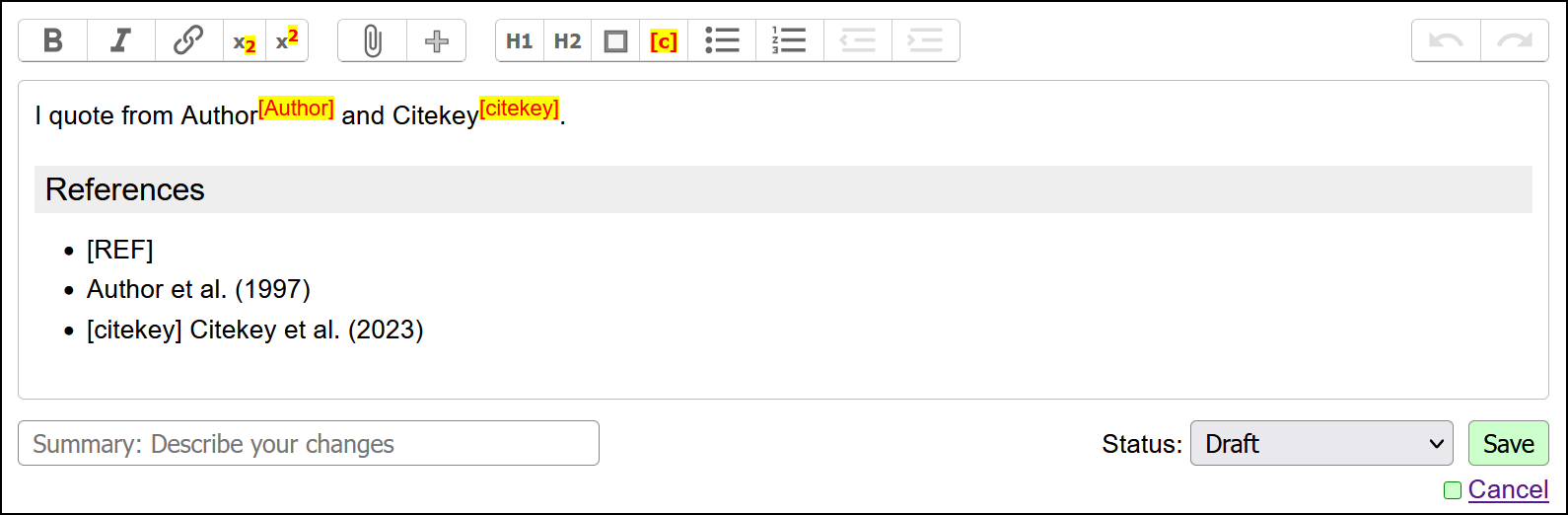
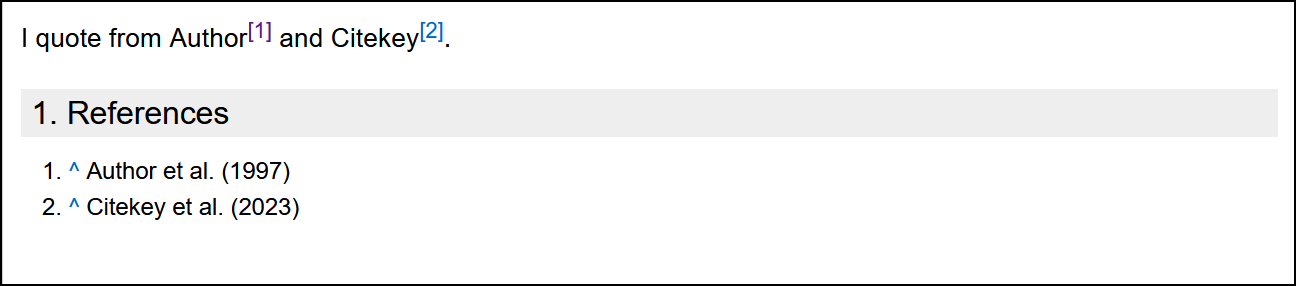
To do this, it is necessary to insert the “References” as a bullet list and open the list with the command [REF].
The "citekey" which is used to reference the desired list entry in the text must be written in square brackets before the list entry. If no "citekey" is set, the first word of the list entry automatically appears.
To insert a reference in the text, the "citekey" must be formatted in superscripted square brackets.
If the bibliography list does not start directly below a heading (H1 or H2), the heading "References" is automatically inserted. It is also possible to start several listings in the text with the command [REF]. The listed entries are then numbered consecutively across all lists.
Review process
Each article is first created and edited within a private sandbox (without public visibility). As soon as the article is ready for a top view by an editor of the wiki.audio team, it can be marked as "Ready for Approval". The article can then be seen by registered users (authors and editors), but is not publicly visible yet. It is then reviewed by an editor who checks it according to wiki.audio's quality criteria and decides whether to approve it. After a successful review, the status is changed to "Approved". As soon as an author makes another change, the article is automatically switched back to "Draft" status. To contact the person who works as an editor for your subject area, please contact us -> mailto:contact [snail] wiki [period] audio.